Showing posts with label Windows. Show all posts

10 Nov 2012

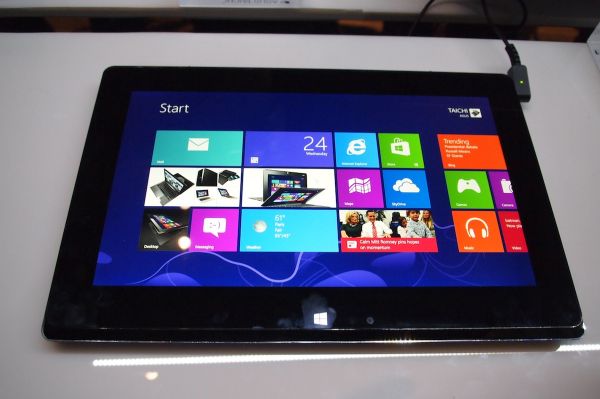
Asus Lanunched New Windows 8 Dual Screen Ultrabook:Asus Taichi

,
Asus Launched their New Windows 8 dual screen ultrabook called Asus Taichi with this caption '' ASUS and Doing What's Never Been Done Before. Incredible Together.''It can display two screens simultaneously.it offers the performance of a notebook when you need it, and the convenience of a tablet when you don't. Asus  already unveiled their windows 8 Tablet called Asus Vivo Tab RT. 

The Asus Taichi is a fusion of notebook and tablet. Lid open, It is a notebook with a full HD screen and backlit keyboard. Lid closed, Taichi is a tablet with a multi-touch full HD screen for fingertip control with Windows 8. 

Asus Taichi Ultrabook Specifications:
  • Operating System: Windows 8 (64-bit)
  • Processor: Intel Core i7-3517U (1.9 GHz)
  • Display: Dual 11.6" IPS Full HD displays (1920x1080); external multipoint touchscreen display(Touch Enabled TFT LCD display)
  • RAM: 4GB DDR3 1600
  • Storage: SATA III SSD
  • Graphics: Intel GMA HD
  • Battery: 5 hour of battery life with 6 cells.
Asus Taichi: Hands on

Read more

30 Oct 2012

How To Download Windows 8 Pro ISO Directly from Microsoft

,

-->
Microsoft has made it extremely convenient for users to upgrade from Windows 7/Vista/XP to Windows 8 using the Windows Upgrade Assistant Application. Using this App, users can check if their system qualifies for Windows 8 upgrade, if so, make the payment and purchase it for a nominal fee. Once the purchase is done, the upgrade assistant lets users to create Windows 8 ISO or as a bootable USB, so that one can use them in case of emergencies in the future.

But what if you went ahead and clicked “Install Now” option without creating the ISO or bootable USB? Well, you don’t need to fret. You can go back and Download Windows 8 ISO any time you like to, assuming you have purchased and possess a valid and genuine Windows 8 product key.

Download Windows 8 ISO (Image) :
1. Look for the email you would've got after purchasing the Windows 8 upgrade from Microsoft. Yes, that same email containing the Windows 8 product key, with the sender’s name as “Microsoft Customer Support”. Here, you’d see a link to download the ISO as shown below:

2. Clicking on the link, downloads the Windows 8 Setup File which you are required to run on your Windows PC.

3. In the next screen, you’ll be asked to enter the Windows 8 product key which you’ll see in the same email. Copy paste it on this screen and Click Next.
4. It will now validate your Windows 8 product key and shows you the version of Windows 8 you’re eligible to download as ISO. Click Next.
5. It will now start to download the Windows 8 Pro ISO which is approximately 2GB in size. Wait for the download to complete.
6. Once done, the setup will check for errors and you’ll be given options to either Install Now, or Install by creating media, or even Install later from your desktop. Select the second option: Install by creating media. Click Next.
7. Now you’ll land in the screen you were waiting for: option to either download the Windows 8 ISO file or as a bootable USB. Choose ISO file and click Next.
8.Choose the folder where you want to save the ISO file and you’re done. Burn the ISO into a DVD in order to use it in cases of re-installations.

Source:intowindows

Read more

27 Oct 2012

Windows 8 Review by Popular Tech Websites

,
Windows 8 Review by Popular Tech Websites:
Windows 8 Review by popular Tech websites Gizmodo,The Verge,Slashgear

KYLE WAGNER, GIZMODO
Using Windows 8 is pleasant, especially if you don’t have to do anything in a particular hurry. It’s a totally new way of thinking about how you want to operate in a desktop OS and maybe not entirely in the way you think. But it also seems like a rough draft of a deeply interesting idea
  • This is the first time that you will have to re-learn how to use Windows on a basic level since 1992.
  • Windows 8 is a dramatic change from previous versions of Windows. But only if you want it to be. The old desktop basically everything you would see in Windows 7s still there, with its taskbar and folders and windows.
  • Windows 8 takes that central idea, incubated in Windows Phone, and codifies it into a hard philosophy with full screen apps that make the insane levels of multitasking we do impractical. You will simplify your workflow
  • Metro apps filling up your screen radically changes how you use them. You can’t open a second window of the Metro Internet Explorer, for example. That’s a radical change from what you’re probably used to in other versions of Windows.
  • Being locked into one window in Metro IE (Metro Chrome retains its tabs) is also disorienting at first. We’re so used to multi-layered browsing that not being able to toggle between tabs and windows at once, over the same space, seems awful.
  • If you’re knee-deep in Metro apps, though, you have some new problems. There is no obvious visual cue as to whether or not an app is open.
  • One thing that immediately comes to mind is being able to use more than one sidebarred Metro app. The way Notifications work is indicative of this disconnect. Notifications look lovely, displaying in the top right corner with some information about what just happened, and then fading away.
  • The build itself seems fairly stable. Loading 25-plus apps managed to crash the Metro Party, but they resumed in their pre-crash states just fine.
  • The Charms gesture from the right side of the trackpad is especially wonderful.
  • If you’re using one of the new convertible Windows 8 computers, or one of the traditional laptops or all in one computers with a touchscreen, you’ll find yourself reaching up and touching the screen much more than you’d think.
  • Settings need work. Well, more bluntly, Windows 8 needs settings. More of them
  • The sad, somewhat predictable truth is that the fundamental act of moving a file from one folder to another the drag-and-drop action that was probably one of the first three things you learned to do on a computer—is kind of terrible in Metro.
  • Networking is cleaner than it has been the wireless connection pane is now tucked into the Metro sidebar options, and the desktop icon boots you there. It’s an improvement.
  • Overall, there is an over-reliance on the Search charm to navigate you around your apps, to the point where there’s no way to search from the Store’s home screen.

TOM WARREN, THE VERGE
If you’ve been waiting for Microsoft to provide better software for a tablet and catch up with the iPad, then this time has certainly arrived
  • The most striking changes to Microsoft’s new operating system are evident as soon as you first switch on a Windows 8 PC. The boot process is surprisingly fast for Windows.
  • Microsoft’s Windows 8 user interface, originally referred to as Metro-inspired a nod to the company’s internal design language is as stunning as it is surprising.
  • Navigating this new user interface is perhaps the most controversial aspect to Windows 8. There’s a steep learning curve here, from navigation to basic tasks like turning off your PC.
  • The Settings charm is one of the more confusing aspects to Windows 8. It’s often easy to forget that an app has multiple places for settings, with some available visually within the app and others available from the Charms.
  • Another aspect to navigation is a new touch- and mouse-based Switcher. Making use of the top left and bottom left touch corners in Windows 8, Switcher works as a basic application switcher. Touch users can swipe from the left and snap back to reveal Switcher.
  • For Windows 8 to truly succeed on tablets, laptops, and desktop PCs, it needs developers to create functional and good-looking apps that work across a variety of display and input types.
  • If you’re upgrading from an older version of Windows, these new apps are certainly a fresh approach. The Windows Store offers a variety of games and apps, but with only 5,000 apps available the selection is rather limited right now.
  • Microsoft is opting to support Adobe Flash, but only in limited cases. This is particularly useful for tablet use, since rival offerings like the iPad have shunned the use of Flash. Microsoft has also enabled Do Not Track by default in IE10.
  • The Music and Video apps mark a switch in direction for Microsoft. Built by the company’s Xbox team, they provide access to the entertainment aspects of Windows 8.
  • Coupled with this, the SmartGlass app also allows you to use a Windows 8 device as a remote control to play Xbox Music content on an Xbox console or simply navigate apps. The implementation is simply stunning.
  • In terms of highlights for Microsoft’s own Windows 8-style apps, this is where it ends. Some of the other built-in Windows 8-style apps are significantly lacking functionality. The Mail app includes basic email functions but little else.
  • Microsoft appears to have rushed some of these apps out of the door half baked.
  • Microsoft’s Windows Store represents the acknowledgement of Apple’s success with a curated application store approach. Developers can submit free or paid apps and earn 70 percent of the revenue from sales, a figure that jumps to 80 percent after a paid app makes $25,000.
  • Once you tap on the Desktop tile or launch an older app from the Start screen, you’re essentially using Windows 7 again, and the desktop mode will feel a lot more familiar.
  • Windows Explorer is also improved and renamed, now referred to as File Explorer in Windows 8. Microsoft has added the ribbon interface to File Explorer, which is collapsed by default.
  • An updated Task Manager is simplified in every sense of the word. The default view will list all currently running applications.There’s simply an end task button to kill off unresponsive apps — a common use for Task Manager.
  • Another important improvement in Windows 8 desktop mode is Microsoft’s multiple monitor support.
  • Thankfully the traditional keyboard shortcuts still work, so power users can run Windows 8 on a desktop in a similar way to Windows 7.

ERIC ABENT, SLASHGEAR
It may not be the Windows we’re comfortable using right out of the box, but it won’t be long before hesitant users begin to realize the value in Windows 8
  • More importantly, the Start screen gives you a way to access the apps you have installed on your computer with a quick click.
  • While the Start screen is definitely one of the biggest changes to be found in Windows 8, it’s only one part of a larger User Interface overhaul. Move your cursor to the upper right-hand corner of the screen, and you’ll be presented with a menu bar that pops in.
  • The settings menu will also change when you access it inside a Windows 8 app. When you do, you’ll be given individual settings for the app you’re using, which is great.
  • There’s also a lock screen present in Windows 8, which again is something that makes sense for touchscreens but seems a little out of place on desktop PCs.
  • Microsoft has made a lot of changes with Windows 8, but for the most part, the Windows we know and love is still intact. The desktop is more or less the same as it was in Windows 7 (with exception of the now-missing Start button, of course), and you can still delve into the depths of your computer by using Windows Explorer.
  • he Store reminds me a lot of the Xbox 360 dashboard, and more specifically the Xbox Live Marketplace. There are already a healthy number of apps available for Windows 8, and they’re split up into different sections right from the start, making navigation easy as pie.
  • I’m already impressed with the apps that Microsoft has packed in with Windows 8, and I’m sure that once developers are pushing out apps for Windows 8 full-time, I’ll be even more impressed.
  • Opening up the search panel and looking up a program is incredibly quick much faster than using the search bar in Windows 7’s Start menu ever was.
  • Boot and shut down times have also been significantly decreased. Whereas it would take 30 seconds to even a full minute to boot and shut down Windows 7 (for me at least), Windows 8 boots in about 15 to 20 seconds, and shuts down in about the same amount of time.
Read more

18 Oct 2012

Starter Guide to Windows SkyDrive

,


Skydrive is an online storage solution from Microsoft which gives you ability to connect devices, share files across platforms with options of Apps, Web Access and your computer over the internet, anywhere, anytime . You can compare it with service like DropBox(See also How to use iOS device as a Wireless Flash drive), but with the recent update, Skydrive has become a different beast which many Windows users will love to use it.

Prior to this, the device were able to connect with services like Mesh which is integrated into Skydrive. Once you install the windows app on a PC, you will be able to access all the drives and folders via Skydrive itself. This is super awesome feature !!

Steps to install a Skydrive on a computer :

Create a Skydrive Account : In order to use Skydrive, you need to create a live id. This can be created on  https://skydrive.live.com/ When you visit that page, you will see a login screen, left of which will be an option which says “Don’t have a Windows Live ID? Signup”. Follow it and create your account.

Good thing about this service is that you can use any of your existing email address to signup in case you do not want to use any other services. Sign up process is easy which needs some of your basic info which will be useful in case you need to verify your account anytime. Also, make sure that you use your correct mobile number here as it is going to be handy when you approve a computer with your Skydrive Account.

Now if, you already have a Hotmail, Messenger or Xbox LIVE Account, I will suggest you to signup with that account. This will give you easy to all these services without requiring you to sign in or sign out all the time.

Grab the free Storage : Microsoft is now giving out 25 Gb of space for users who already been using Skydrive from sometime, but if you are new, you still get the 7GB Space to start.

Read more

30 Aug 2012

Samsung's new ATIV Smart PC tablets with Windows 8

,
Just few hours go the official release, Samsung’s Windows 8 offerings information got leaked. The photos of Samsung ATIV Tab And ATIV Smart PC Tablets. Samsung ATIV Tab is the Windows RT based tablet with 8.9mm thick and 570g weight. It will have a 1.5GHz dual-core processor with a 5mp camera & 1.9-megapixel FF camera. It will come with USB, uHDMI port and Office 2013 pre-installed.

ATIV Smart PC and ATIV Smart PC Pro are 11.6-inch tablets with a keyboard dock and S Pen input technology.  It will support 10-finger multitouch, full HD 1920 x 1080 pixel screem. ATIV Smart PC is expected to have an Intel Atom processor, while the ATIV Smart PC Pro to sport an Intel Core i5 chip.

Leaked Images of Samsung ATIV Tab and Smart PC:


(Source:The Verge)

Read more

21 Aug 2012

Nokia-Phi -First Windows 8 Phone:Features and Specifications

,
Finally Nokia has come up with its First Mobile Phone with Windows 8 called Nokia Phi. After successfull launching of Lumia series,the company seems to have much consontrate for windows based devices.The new Nokia-Phi looks like a larger version of the Nokia Lumia 800.
Nokia-Phi
The new mobile Nokia-Phi launched in Nokia World Event , in the first week of September 2012. However, this will be available in October 2012 in the retail market, for purchasing when the Windows 8 OS will be available officially in the market.

Features and Specification of Nokia-Phi (First Windows 8 Phone):

  • 3.7 inch screen
  • Curved Screen to provide more thickness
  • Polycarbonate body with unibody chassis
  • Capacitive buttons on front Side
  • NFC Supported
  • LTE Supported (Long Term Evaluation standard)
  • Qualcomm Dual core Processor
  • External microSD Card Slot for expanding memory
Differences between Nokia-Phi and other Nokia Lumia Series Phones:
  • Phi has external storage option , Lumia 800 does not have
  • Phi Runs on Windows 8 , Lumia 800 Runs on Windows 7.5 (Mango OS)
  • Phi has a support of LTE , whereas the Lumia has 3G support only
  • Phi has comparatively better screen resolution
  • Phi has Dual Core Processor , Lumia has Single Core
  • Nokia Phi is not officially released / launched , whereas the Lumia is easily available in the market
There is no official Announcement of releasing date in india.This will be launched mid of October 2012 after the international Launch of Nokia-Phi 
According to the Experts the price of the Nokia-Phi would be Around 30000 to 40000
Read more

2 Aug 2012

How to run Android Apps In windows PC

,


BlueStacks has released its App Player alpha for Windows called BlueStack App Player, allowing PCs and Windows-based tablets to not only run Android apps but, thanks to Cloud Connect, share software between the platforms. A free download, BlueStacks allows software coded for Android phones and tablets to run either windowed or in full-screen on Windows computers, with no modification to the original software.

As for Cloud Connect, that’s the glue that links the Android and Windows sides of the equation. After installing a free app on your Android phone, third party apps can be pushed from the handset to the computer. It’s also possible to see which apps are currently loaded on your PC from an Apps Channels on your phone.

The BlueStacks App Player alpha comes with 10 apps preloaded, and supports up to 26 further titles of your choice. A promised BlueStacks App Player Pro version will remove that limit, as well as supporting paid apps. Meanwhile the company says an OS X version for Mac is in the pipeline too, as well as conversations with manufacturers such as ViewSonic about preinstalling the tech on their Windows machines.

If you want to download BlueStacks App Player setup, just go with following link:


Read more

70,000 Windows Drivers for Windows 2000,XP and Vista Download

,
Now there is no need to waste time searching for drivers on the Internet. Just record the image (ISO) on the CD, and if necessary insert the disk into the drive and Windows itself detects and installs the driver. Especially be useful to those who often sets the OS on different machines.
Download Links:

Download ->Part 2

Download ->Part 3

Download ->Part 4

Download ->Part 5

Download ->Part 6


Read more

1 Aug 2012

How to Upgrade from Hotmail or Live to Outlook.com

,
Hotmail, the world’s first Internet mail service . Technically, it is not dead yet, but Microsoft is rebranding Hotmail.com as Outlook.com.


Here below  video can help you to upgrade Hotmail to Outlook:

Read more

29 Jul 2012

Top 10 List of Free Anti Virus Softwares for Windows

,
Top 10 free Antivirus softwares for windows:


1.Avast! Free Antivirus:
This is, in my opinion, the best free antivirus available. In the free version, all you have to do is register (for free) once a year and you get top notch protection on your computer, emails, downloads and IMs. It has a powerful heuristics engine that allows it to find almost every virus around. The experience gathered over the years (since 1988) by its developers shows really well in Avast!
2.Panda Cloud Antivirus:

Panda antivirus does not differentiate itself from other free antivirus software in any way when it comes to protection. It offers the same level of detection from viruses, trojan, spyware, adware, worms and malware and its features are not that specific. The thing that made Panda Cloud Antivirusthe second position in my list is the fact that it is, as the name suggests, Cloud based. What that means, is that when you scan your computer, it doesn’t use resources from your computer, but it operates in the cloud, keeping your computer working as normal.

3.Microsoft Security Essentials:

I know Microsoft is new to the internet safety game, but that doesn’t mean they didn’t develop a great antivirus. Microsoft Security Essentials is a great antivirus, it’s incredible easy to use and it’s absolutely free! It updates automatically and, being produces by Microsoft, it actively interacts with Windows and it’s perfectly integrated in the operating system.

4.Avira AntiVir Personal Edition:

Avira is another example of a really good free antivirus program that has very much to offer. Excellent protection, user friendly and it consumes next to nothing from your resources. I’ve used it for some time and must say I’m really happy with the results. It detects most threats and it works in silence in the background. It’s perfect for laptops and netbooks, but also for your own personal computer.

5.AVG Anti-Virus Free Edition:
AVG is again on our list of best antivirus programs, this time, the free version. This antivirus works great and its top notch detection stats are impressive. If you are looking for a really good free antivirus, with cool features, like link scanner and email scanner, than you should definitely try AVG Anti-Virus, it’s one of the best.

6.Comodo AntiVirus;

Comodo Antivirus is a fairly good antivirus program. After making all the steps in installing it (it requires some extra steps from your usual antivirus), I saw a nice looking antivirus with a detection rate of up to 90% and a resolving percentage of 60%, but I recommend to use in parallel with another antivirus that provides more cleaning power. Its detection engine is really good, but you might think of getting another software if you want to clean your infected files.. Those numbers are what makes Comodo come on our list of best free antivirus programs.

7.Immunet Protect Free:

This is a fairly good antivirus, much like Panda Cloud Antivirus, it works in the cloud, keeping your computer working free. It offers really good protection against bots, worms, viruses, trojans, keyloggers, and spyware, so a full protection. This was a surprise, but Immunet is a really good antivirus and it has my thumbs up and recommendation for anyone who wants to try it.

8.PC Tools AntiVirus Free:

PC Tools AntiVirus is one of the most basic antivirus programs you will find. It has some features, but don’t get excited. I featured it in this list because it is still better than other free antivirus software, but not by much. If you are not an avid internet browser, and more of the type that only sends emails, it will get the job done, but any more than that, I recommend something stronger.

9.Malwarebytes:

Malwarebytes is 9th on our list because it doesn’t run in background, so no real time protection and it cannot protect you in real time. Technically, it is not an antivirus. But, the reason it is on our list is because when you run into a problem with malware or worms, trojans and such and your top of the line antivirus can’t handle it, all you have to do is run Malwarebytes and the problem is solved. This little program can handle anything you throw at it. I recommend keeping it on a USB flash drive and when your computer crashes, try giving it a scan in safe mode with this program, it might just save you from a “format C:/”.

10.ClamWin Free AntiVirus:


ClamWin Free Antivirus is not the best free antivirus. Although you may know it from the Linux version (CalmAV), this is more a basic tool that you use to scan your computer. The reason ClamWin is at the bottom of the list are: no real time protection, lack of features and a little tricky to use. But, on the other side, it does make a really good detecting tool and it doesn’t use many resources.
Keep in mind, the system I tested all these antivirus programs is an Intel i5 750@ 3.5 GHz with 4 GB of DDR3 Memory. Try to find out if these powerful antivirus programs will work well on your systems, as some require lots of horsepower.


Read more

Things to Know Before you Download Windows 8

,
Microsoft today unveiled the “release preview” version of Windows 8 which mostly indicates that the new Windows operating system is feature-complete. Windows 8 Release Preview is available as a free download and it is very likely that your existing system specs are good enough to run Windows 8.

The System Requirements for Windows 8

According to this Windows 8 FAQ, any machine equipped with 1 GB of RAM, 16 GB of hard disk space and 1 GHz processor should be able to handle Windows 8. The minimum RAM requirements are 2 GB in case you would like to install the 64-bit version of Windows 8.

Should you download Windows 8 Setup or the ISO Image?

As you may have noticed on the Windows 8 download page, the installation of Windows 8 can be done in two ways.

You can either take the easiest route and download the Windows 8 Setup program that’s also the default option.
Alternatively, you can download ISO Images of Windows 8.
If you are planning to install Windows 8 on your existing computer, either on a different partition (dual-boot) or just want to upgrade from an older version of Windows to Windows 8, the default Setup program is a good choice.

Please note that that your installed software programs will only be preserved if you are upgrading from Windows 7 to Windows 8. If your planning to install Windows 8 on top of Windows XP or Vista, only the files will be preserved but not the various software programs that you may have on the disk.

The Windows 8 ISO image may be more handy in other situations like:

Your computer has an x64 processor but is currently running the 32-bit version of Windows. If you want to install the 64-bit version of Windows 8, download the 64-bit ISO.
You want to install Windows 8 on your Mac (iMac or Macbook) using Boot Camp software.
You want to install Windows 8 on multiple computers. In that case, you can download the ISO once, create a bootable DVD and boot the other systems using this newly created Windows 8 disk.
You plan to run Windows 8 as a Virtual Machine inside your existing copy of Windows.
You are running Windows XP.
The universal product key for Windows 8 is TK8TP-9JN6P-7X7WW-RFFTV-B7QPF.

Will my software programs run inside Windows 8?

Before grabbing the ISO image of Windows 8, quickly run this setup utility and it will show a list of all software programs and hardware drivers on your system that are compatible with Windows 8. Alternatively, you can visit this page to see a list of all known software and hardware devices that are found to be working with Windows 8.

How should I go about installing Windows 8?

You can have Windows 8 on your computer in three ways – you can install Windows 8 side-by-side (also known as dual-boot), as a virtual machine (so that it runs inside your existing Windows just like any other software) or you can have Windows 8 as your primary OS (there’s no going back from here).

If you just want to try out Windows 8 but without modifying any of your existing set-up, the safest bet is to use a Virtual Machine. If you have a vacant disk partition or don’t mind creating one (it’s easy), go for the dual-boot option. Else, if you have a spare computer, you can consider upgrading to Windows 8 overwriting the previous installation of Windows.

Also note that if you are upgrading from Windows 8 Consumer Preview to the new Windows 8 Release Preview, none of your installed programs, files and account settings will be preserved though everything would be moved to the windows.old folder.
Read more
 

Gizmolab - Tech Blog Copyright © 2011 -- Template created by Gizmolab - Powered by Blogger